Menu Items
Planning tasks you should do prior to setting up menu items:
|
||
|

Data entry tasks you should do prior to setting up your POS menu items:
|
Additional notes:
|
|
Menu Item Setup
Menu Item Setup is located on the POS Administrator Menu.
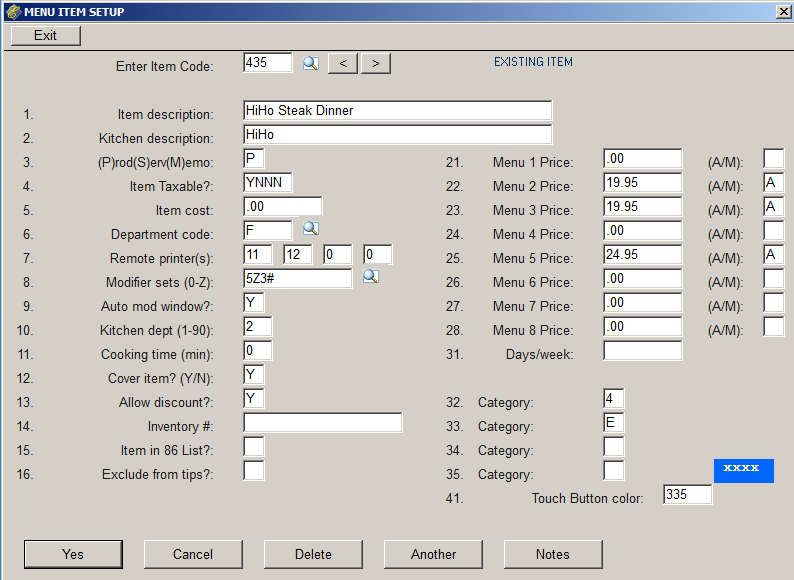
Enter Item Code: up to four characters. The characters may be numbers, upper case letters, lower case letters, or other characters such as @. The first character will be the default category, so all items of the same category should begin with the same character. For example, items in the "sandwich" category might be s101, s102, etc. If looking up an existing item, you may enter the item code of use the magnifying-glass look-up icon. The item code is the record "key" and may not be changed.
5. Item cost: is the cost of the item to you, not the sale price. 6. Department code: is a required field and should be a valid Revenue Department. 7. Remote printer(s): assigns up to four remote printers to receive a chit when this item is selected. Enter the unit number for the printers you wish to receive the chit or remote printout. Printers must be configured properly in Printer Setup. 8. Modifier sets (0-Z): assign modifier sets to this menu item so that the correct modifier choices will be available to the server when entering items on a guest check. If a modifier set is assigned, all modifiers within that set will display. The modifier sets (screens) will display in the order in which they are entered here. If you are using modifiers that increase or reduce the item's price, see the special notes in Item Modifiers. 9. Auto mod window?: will automatically pop up the modifier windows if this field is set to Y. This makes it easier for the server when entering an item " with modifier choices. If this field is set to N, then the server may touch or click the "Modify" button at the top of the item-entry screen. 10. Kitchen dept (1-99): allows items to be printed together by department on the kitchen chit regardless of the order in which they are entered into the computer. This field may be left blank if you do not wish to sort/print items together by department but want them to print in the order they are entered. See also Printer Setup for print sorting. 11. Cooking time (min): is informational only and is optional. 12. Cover item? (Y/N): should be set to Y if you wish to include this item in your "cover" count. 13. Allow discount?: should be set to N if you do NOT wish to allow a discount on this item. 14. Inventory #: is used in conjunction with Execu/Tech's Inventory Control module (purchased separately) and allows the tracking of menu item sales. With Inventory Control, Items sold in POS will relieve inventory. 15. Item in 86 List?: can be set to Y if you wish to enter a quantity amount for this item so that you can view the "86 List" for a count of remaining items. 16. Exclude from tips?: can be set to Y if you do not wish this item included percent tips calculated by the system. Lines 21 through 28:
Menu _ Price: Sale price for this item for this menu. (A/M): A = automatic pricing, M = manual pricing, blank = not in menu
31. Days/week: may be used to sell items only on specific days of the week. Enter 1 for Sunday, 2 for Monday, etc. Use no punctuation or spaces. For example, 12345 for Sunday through Thursday. If this field is blank, this item will be available all days.
Category places this menu item in the appropriate category.
41. Touch Button color: determines the color of the button on the item entry screen. It is a good idea to make all items of the same category the same color as the category and as each other although this is not required. Do whatever makes it easiest for your servers. When you get to this field, press <Enter> on your computer keyboard to display common colors. Note that each color has a numerical code. You may play around with colors, using numbers, four or fewer digits. Remember to keep the screen restful and easy to read.
If you have more items to enter and they are similar to this one, click the Another button. "Another" will save this open and then open a new screen for you to enter the next item. "Item code" is blank, requiring you to enter a new code for the new item. You may enter a new description. |

|
Execu/Tech Systems offers professional training. We can come to your property or train you remotely. Email support@execu-tech.com for a quote or to schedule your trainer. |
See also:
Item Modifiers
Item Categories
Discount Records
Item Button (Keyboard) Setup