Email Settings
Before You Begin
Microsoft 365 or Office 365 accounts
ExecEmail Using Command Line Arguments
Using the older Outlook emailer
|
The new ExecEmail is a self-contained email editor and sender. It replaces the older Outlook interface and removes the need for customers to install Microsoft Outlook. These are the files that are needed for it to function properly:
|




|
 |
Before You Begin |
|
You MUST contact your email provider to obtain many of the settings described below. Execu/Tech Systems is not your email provider and can't obtain your email settings for you.
You MUST verify that your email provider will allow SMTP Authentication or SMTP Relay. If they don't allow SMTP Authentication or SMTP Relay, emails will NOT send.
If you are using a Microsoft 365 or Office 365 account, read this first: Microsoft 365 or Office 365 accounts If you are using a Gmail account, read this first: Gmail Issues |
|
- Open the Execu/Suite folder. Find Software Application Folder
- Find the program ExecEmail.exe and run it (double-click on it.)
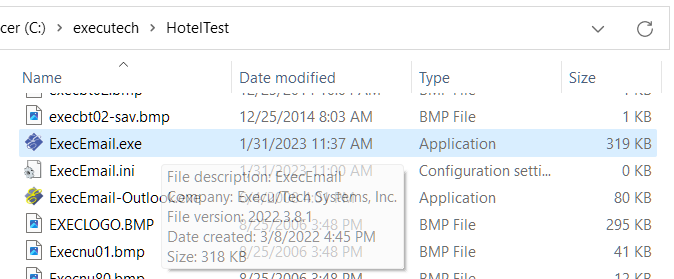
The ExecEmail application will open. This is the settings window: (If you don't see the following window, you're running the older version.)
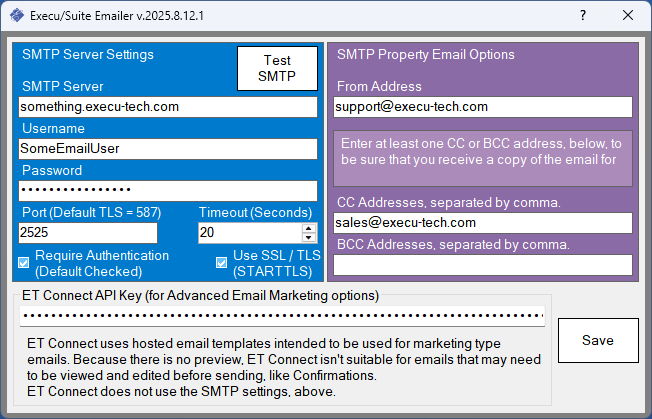
SMTP Server Settings
Property Email Options:
After entering or editing the information, click Save. Click Test to send a test email. You can change the To Address or add a CC for testing, but you cannot change the From Address. If the test is successful, you will see an Email Sent popup message. If it is not successful, it will return an error message. Errors / Troubleshooting |
||||||||||||||||||||||||||||||||||||||||||||||
|
Microsoft 365 or Office 365 accounts
Below is information from Microsoft regarding SMTP settings. Please contact your account administrator or Microsoft Support with questions regarding these settings.
How to set up an application to send emails using Microsoft 365 or Office 365
If you are using a Microsoft 365 or Office 365 email account, there are a few settings that can affect the ability to send emails with ExecEmail:
1. Security Defaults
When Security Defaults are enabled:
To turn off this setting, see: Security Defaults in Microsoft
For GoDaddy Microsoft 365 accounts, see: Microsoft 365 from GoDaddy - Enable or disable security defaults
Note: Execu/Tech Support cannot advise you regarding security protocols for your organization.
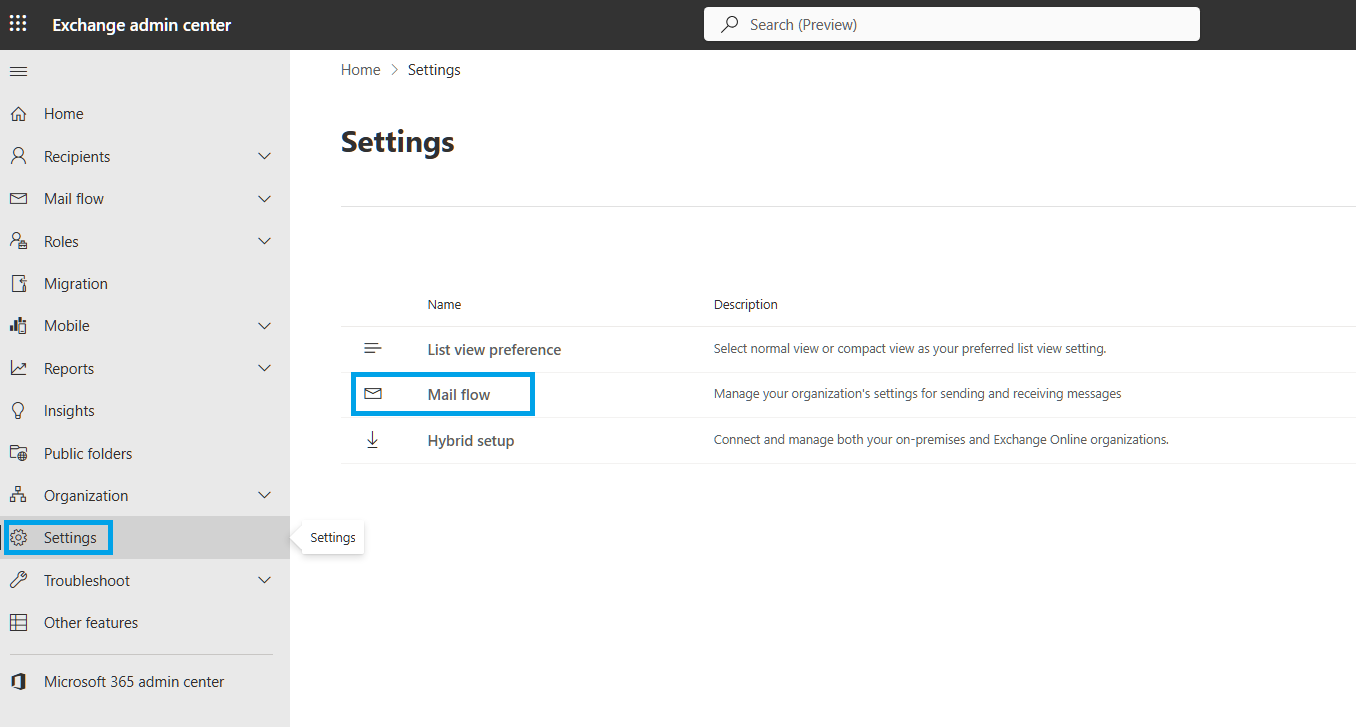
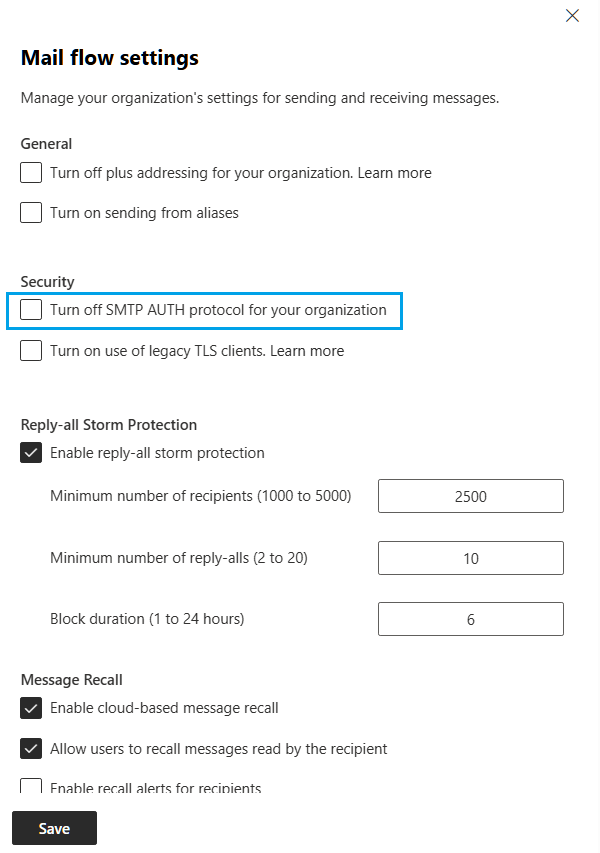
2. Enable SMTP Auth
See Enable or disable SMTP AUTH in Exchange Online
For GoDaddy Microsoft 365 accounts, see Microsoft 365 from GoDaddy - Enable SMTP Authentication.
3. Multifactor Authentication (MFA)
MFA must be turned off for the email account unless you create and use an App Password in place of your actual account password. See App Passwords.
Note: Microsoft App Passwords have not been tested with ExecEmail, so there is no guarantee they will work. However, we have tested Gmail app passwords and they do work.
Execu/Tech cannot assist you with creating an app password. Please contact your account administrator or Microsoft Support. |
|
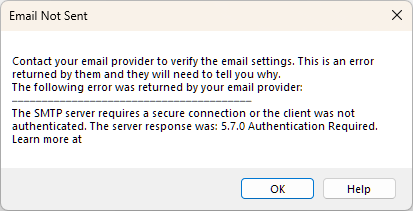
If you use a Gmail account, you might get an error like this:
Email Not Sent
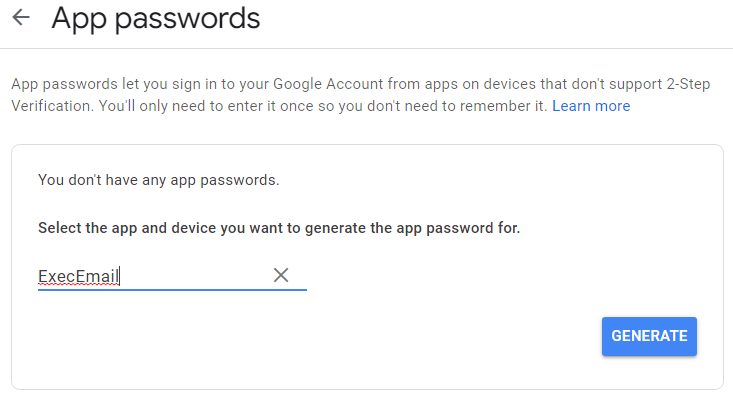
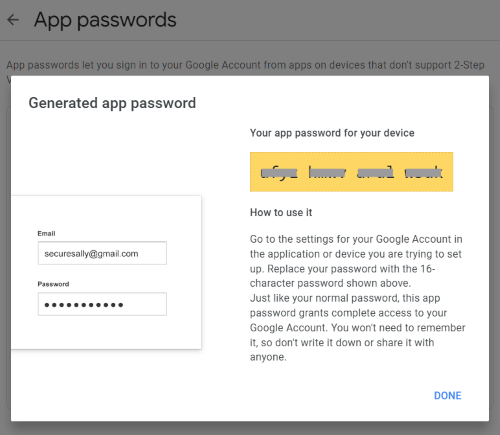
As of May 30, 2022, Google no longer supports signing in to third-party apps with your Google Account, using only your username and password. Less secure apps & your Google Account - Google Account Help Because of this, Gmail users will now need to create an App Password to be able to send emails with ExecEmail. Sign in with App Passwords - Google Account Help Creating an App Password for ExecEmail
ExecEmail Settings for Gmail:
SMTP Server: smtp.gmail.com Username: Your Gmail account name (example@gmail.com) Password: The 16-digit App Password you created Port: 587 Both boxes should be checked. |
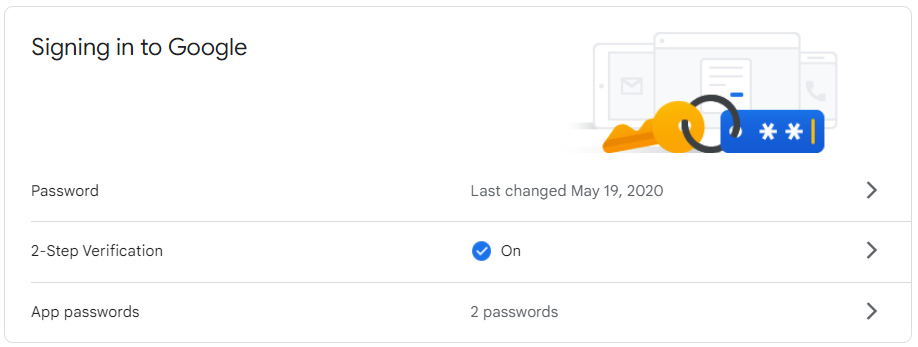
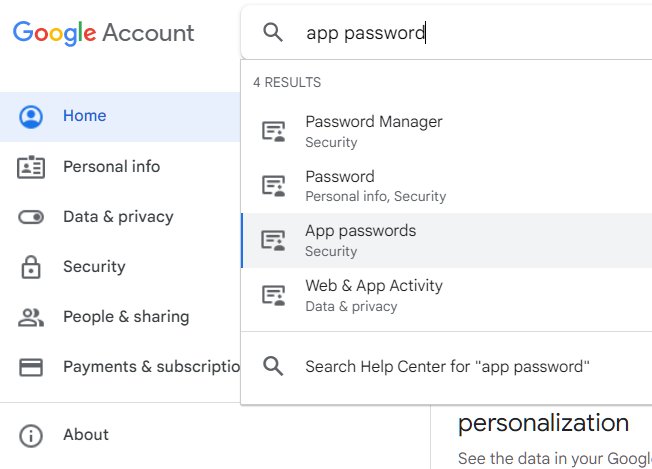
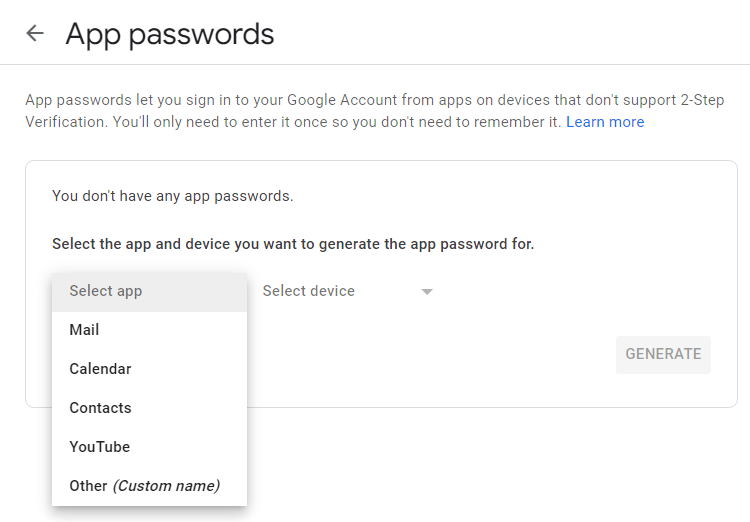
|
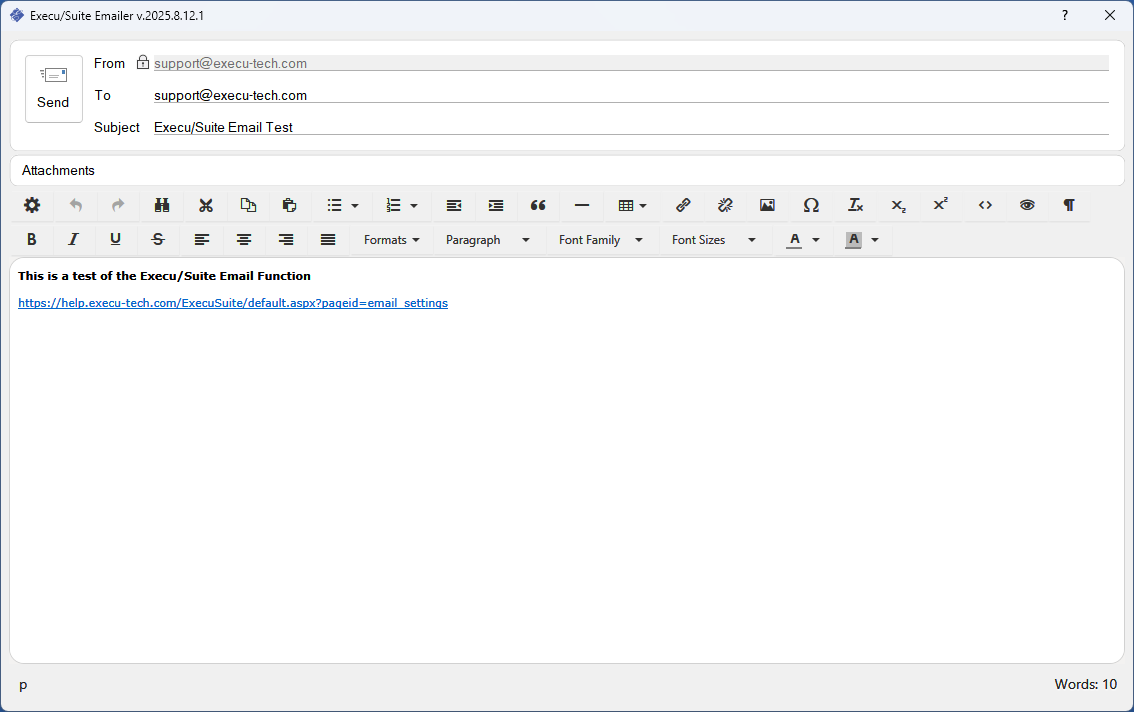
Sending an Email
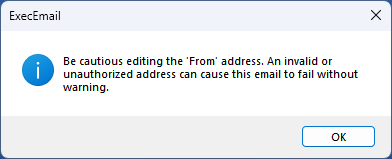
Be cautious editing the From address. An invalid or unauthorized address can cause this email to fail without warning. You'll see this reminder when you lock the From address. Most SMTP services place restrictions on the From address by default. Contact your SMTP email provider to determine the limitations.
|

|
ExecEmail Unique 'From Address'
To set the terminal record's email address, go to System Maintenance > User I.D Setup > Terminal Record > 'From' Email Address:
All email documents sent from this terminal will contain this From Address. |

2.png)
|
ExecEmail Using Command Line Arguments
|
||||||||||||||||||||||||||
|
There are 3 reasons why ExecEmail is not working:
The following aren't all of the errors you may see, but they are the most common: |
|
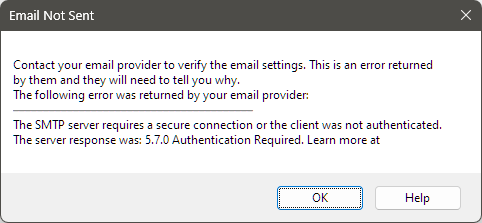
The SMTP server requires a secure connection or the client was not authenticated. The server response was: 5.7.0 Authentication Required.
Possible causes:
|
|
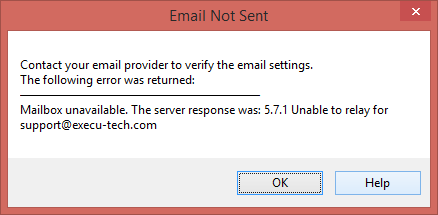
Mailbox unavailable. The server response was: 5.7.1 Unable to relay for ____.
Possible causes:
|
|
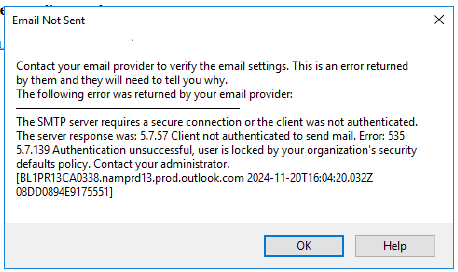
The SMTP server requires a secure connection or the client was not authenticated. The server response was: 5.7.57 Client not authenticated to send mail. Error: 535 5.7.139 Authentication unsuccessful, user is locked by your organization's security defaults policy. Contact your administrator.
Possible causes:
|
|
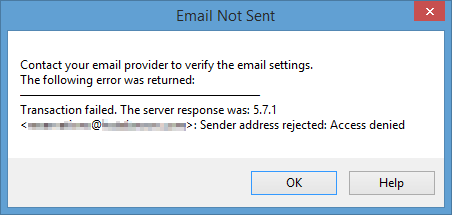
Transaction failed. The server response was: 5.7.1 <_________> : Sender address rejected: Access denied
|
|
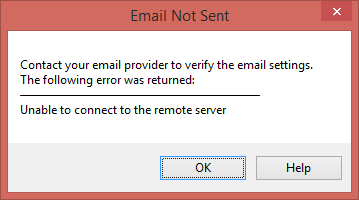
Unable to connect to the remote server
Possible causes:
|
|
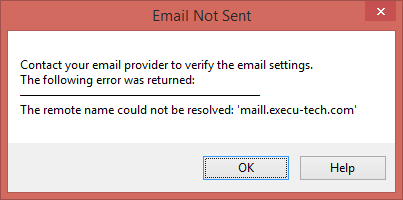
The remote name could not be resolved
Possible causes:
|
Using the older Outlook emailer
Menuini.fil is a configuration file in the PMS software folder. This file can be opened with Notepad and edited.
Search for the line containing: HOTEL-MAIL-OUTLOOK=YES
It might be commented out with a # in front of the line, or it might have =NO rather than =YES.
|
